


Table of Contents
ToggleIntroduction (Phishing Emails)
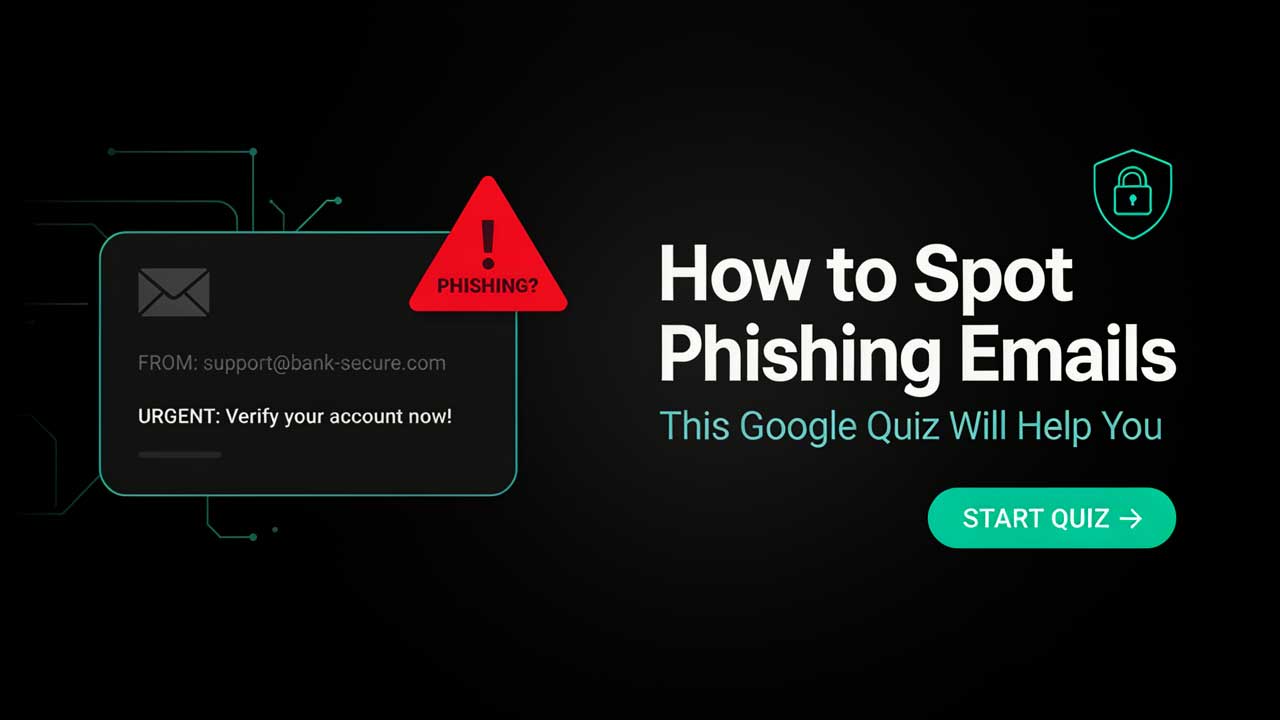
Phishing emails are everywhere. They try to steal your passwords, credit card numbers, and personal data. In 2026, phishing attacks are more sophisticated than ever. This guide covers how to spot phishing emails using the Google quiz and other tools. It includes the USA, UK, Canada, and Australia. Whether you are a beginner or a professional, this guide provides the information you need to stay safe.
Test Your Ability to Spot Phishing Emails
Test your ability to spot phishing emails with the Google phishing quiz. This interactive tool shows you real examples of phishing and legitimate emails. You decide which is which. It is a great way to learn. Take the quiz at phishingquiz.withgoogle.com.
We’ve done the search. Now discover the Real Resources
Finding the right tools shouldn't have to mean endless searching, or taking chances on unknown vendors. That’s why we invested valuable time during our research period to identify useful payment security resources.
Verified and Recommeded Tools / Service Shops
escrow deals for businesses worldwide.
We Help You Spot Phishing Emails
This guide helps you spot phishing emails. It covers the signs, tools, and techniques you need. Use the Google quiz to test your skills. Use browser extensions to detect phishing. Report suspicious emails to Google and authorities.
What Are Phishing Emails and How Do They Work?
Phishing emails are fake messages that appear to come from trusted sources. They trick you into clicking a link or downloading an attachment. The link goes to a fake website that steals your login credentials. The attachment contains malware that infects your computer. Phishing emails work by exploiting human trust and urgency.

Why Is It So Hard to Spot Phishing Emails Today?
Phishing emails are harder to spot today because they use sophisticated techniques. Attackers use your name and personal details from data breaches. They copy the exact design of legitimate emails. They use urgent language to make you act quickly. They also target mobile devices where it is harder to check links.
What Are the Most Common Signs of a Phishing Email?
The most common signs of a phishing email include:
- Urgent or threatening language
- Requests for personal information
- Suspicious sender email address
- Generic greetings like Dear Customer
- Spelling and grammar errors
- Mismatched URLs
- Unexpected attachments
- Too good to be true offers
- Unfamiliar sender
- Requests to verify your account
How to Check the Sender’s Email Address for Red Flags
To check the sender’s email address for red flags, hover over the sender name. Look for misspellings like amaz0n.com instead of amazon.com. Check the domain name. Legitimate companies use their own domain. If the email is from gmail.com but claims to be from your bank, it is phishing. Look for extra characters or numbers in the domain.
Common Phishing Email Subjects and Body Text Tricks
Common phishing email subjects include:
- Your Account Has Been Suspended
- Urgent Action Required
- Your Payment Failed
- Claim Your Refund Now
- Your Order Confirmation
- Security Alert
- Your Password Has Expired
Body text tricks include:
- Using official logos and branding
- Creating a sense of urgency
- Asking you to click a link
- Asking you to download an attachment
- Threatening to close your account
- Promising a reward or refund
- Using your name from data breaches
What Does a Legitimate Email from Google or Banks Look Like?
A legitimate email from Google or your bank will:
- Use the company’s official domain
- Address you by your full name
- Not ask for your password or sensitive information
- Not contain urgent threats
- Not contain links to login pages
- Be professionally written without errors
- Come from a known sender in your contact list
How Does the Google Phishing Quiz Work and What Can You Learn?
The Google phishing quiz shows you 8 emails. You decide if each is phishing or legitimate. After each answer, you get an explanation. You learn what to look for in real emails. The quiz covers common phishing techniques. It is free and takes only a few minutes. Go to phishingquiz.withgoogle.com to take it.

Best Free Phishing Quizzes and Training Tools in 2026
The best free phishing quizzes and training tools in 2026 include:
- Google Phishing Quiz: phishingquiz.withgoogle.com
- Phishing.org: Comprehensive training materials
- KnowBe4: Free phishing test for employees
- PhishTank: Report and check phishing URLs
- OpenDNS: Phishing protection for networks
- Cisco Talos: Threat intelligence and phishing reports
- Microsoft 365 Defender: Phishing protection for businesses
- Cloudflare: Phishing protection for websites
How to Enable Gmail Phishing Protection Features
To enable Gmail phishing protection features, follow these steps:
Step 1. Open Gmail settings. Step 2. Go to Security. Step 3. Enable Advanced Protection Program. Step 4. Turn on suspicious email warnings. Step 5. Enable automatic phishing detection. Step 6. Turn on email authentication. Step 7. Enable two factor authentication for your Google account. Step 8. Use Google’s Password Checkup tool.
What Should You Do If You Clicked a Suspicious Link?
If you clicked a suspicious link, follow these steps immediately:
Step 1. Disconnect from the internet. Step 2. Run a full antivirus scan. Step 3. Change your passwords for all accounts. Step 4. Enable two factor authentication on all accounts. Step 5. Contact your bank if you entered financial information. Step 6. Report the phishing email to Google and authorities. Step 7. Monitor your accounts for suspicious activity. Step 8. Check your credit report for identity theft.

How to Report Phishing Emails to Google and Authorities
To report phishing emails to Google, forward the email to [email protected]. You can also report it to the Federal Trade Commission at ftc.gov/complaint. Google has a report phishing button in Gmail. Click the three dots menu and select Report phishing. You can also report to the Anti Phishing Working Group at [email protected].
Also read: What To Do If Your PayPal Money Is On Hold?
Common Mistakes People Make When Identifying Phishing
Common mistakes include:
- Relying only on the sender name
- Not checking the actual email address
- Clicking links without hovering first
- Believing urgent threats are real
- Not looking for spelling errors
- Assuming all emails with logos are legitimate
- Responding to the email instead of reporting it
- Opening attachments from unknown senders
- Not using two factor authentication
- Thinking it will never happen to them
How to Use Browser Extensions and Tools to Detect Phishing
Browser extensions and tools to detect phishing include:
- Google Safe Browsing: Built into Chrome, blocks known phishing sites
- Netcraft: Browser extension that detects phishing
- Web of Trust: Rates website reputation
- Avast Online Security: Blocks phishing and malware
- Bitdefender TrafficLight: Blocks phishing links
- PhishDetector: Checks URLs for phishing signs
- URLScan.io: Scans URLs for threats
Phishing vs Legitimate Emails: Side-by-Side Examples
Phishing email example: From [email protected] with subject Your Account Has Been Suspended. The email has a generic greeting, urgent language, and a link to a fake login page.
Legitimate email example: From [email protected] with subject Your Monthly Statement is Ready. The email addresses you by name, has no urgent language, and links to the official website.
How to Protect Your Accounts from Phishing After an Attack
To protect your accounts from phishing after an attack, follow these steps:
Step 1. Change your passwords for all accounts. Step 2. Enable two factor authentication on all accounts. Step 3. Run a full antivirus scan. Step 4. Check your accounts for unauthorized activity. Step 5. Contact your bank if financial information was compromised. Step 6. Report the phishing attack to authorities. Step 7. Monitor your credit report for identity theft. Step 8. Use a password manager to create strong passwords. Step 9. Enable Google’s Advanced Protection Program. Step 10. Educate yourself on future phishing attempts.
What Are Business Email Compromise Scams?
Business email compromise scams target businesses. Attackers impersonate executives or vendors. They request wire transfers or sensitive information. These scams are sophisticated and often succeed. To protect your business, verify all payment requests by phone. Use multi factor authentication. Train employees to spot these scams.
How to Teach Others (Family or Team) to Spot Phishing
To teach others to spot phishing, follow these steps:
Step 1. Share the Google phishing quiz with them. Step 2. Show them real examples of phishing emails. Step 3. Explain the common signs of phishing. Step 4. Practice identifying phishing emails together. Step 5. Encourage them to ask questions before clicking. Step 6. Set up reporting procedures for suspicious emails. Step 7. Use phishing simulation tools for teams. Step 8. Reward employees who report phishing attempts. Step 9. Keep training updated with new techniques. Step 10. Make security a regular conversation.
Is It Safe to Forward Suspicious Emails for Analysis?
Yes, it is safe to forward suspicious emails for analysis. Forward the email as an attachment to your IT department or security team. Do not click any links or download attachments before forwarding. You can also forward to [email protected]. Use the report phishing button in Gmail. The analysis helps protect others from the same attack.
How Phishing Emails Have Evolved in 2026
Phishing emails have evolved in 2026 to use AI generated content. They are more personalized and harder to spot. Attackers use data from breaches to customize emails. They use deepfake voice and video for phone based phishing. They target mobile devices with SMS phishing (smishing). They use QR codes to bypass URL filters. They also use legitimate services like Google Forms to host phishing pages.
Final Checklist: How to Spot and Avoid Phishing Emails
- Check the sender’s email address carefully
- Hover over links before clicking
- Look for urgent or threatening language
- Check for spelling and grammar errors
- Do not share personal information via email
- Use two factor authentication on all accounts
- Use browser extensions to detect phishing
- Take the Google phishing quiz to test your skills
- Report suspicious emails to Google and authorities
- Keep your software and devices updated
- Use a password manager for strong passwords
- Enable Google’s Advanced Protection Program
- Monitor your accounts for suspicious activity
- Educate yourself and others on new phishing techniques
- Verify all requests for money or information by phone
Conclusion of Phishing Emails
How to spot phishing emails this Google quiz will help you provides everything you need to stay safe. By using the tools and techniques in this guide, you can protect yourself from phishing attacks. Use trusted vendors for your security tools and services.
Visit Vladfox.com to get Non VBV BINs or clonecards.store to get clone cards, legit dumps with pin and carding materials, also visit worlddumps.com to get money swift money transfer service which includes bank transfer, paypal, cashapp, venmo, zelle and western union transfers.
Also read: Amazon GiftCard Carding Methods in 2026
FAQ Section on Phishing Emails
Q: What are phishing emails and how do they work?
A: Phishing emails are fake messages that appear to come from trusted sources. They trick you into clicking a link or downloading an attachment. The link goes to a fake website that steals your login credentials.
Q: Why is it so hard to spot phishing emails today?
A: Phishing emails are harder to spot because they use sophisticated techniques. Attackers use your name and personal details from data breaches. They copy the exact design of legitimate emails.
Q: What are the most common signs of a phishing email?
A: Urgent or threatening language, requests for personal information, suspicious sender email address, generic greetings, spelling and grammar errors, mismatched URLs, unexpected attachments, and too good to be true offers.
Q: How to check the sender’s email address for red flags?
A: Hover over the sender name. Look for misspellings like amaz0n.com instead of amazon.com. Check the domain name. Legitimate companies use their own domain.
Q: How does the Google phishing quiz work and what can you learn?
A: The Google phishing quiz shows you 8 emails. You decide if each is phishing or legitimate. After each answer, you get an explanation. You learn what to look for in real emails.
Q: Best free phishing quizzes and training tools in 2026?
A: Google Phishing Quiz, Phishing.org, KnowBe4, PhishTank, OpenDNS, Cisco Talos, Microsoft 365 Defender, and Cloudflare.
Q: How to enable Gmail phishing protection features?
A: Open Gmail settings. Go to Security. Enable Advanced Protection Program. Turn on suspicious email warnings. Enable automatic phishing detection. Turn on email authentication. Enable two factor authentication.
Q: What should you do if you clicked a suspicious link?
A: Disconnect from the internet. Run a full antivirus scan. Change your passwords. Enable two factor authentication. Contact your bank. Report the phishing email. Monitor your accounts. Check your credit report.
Q: How to report phishing emails to Google and authorities?
A: Forward to [email protected]. Report to the FTC at ftc.gov/complaint. Use the report phishing button in Gmail. Report to the Anti Phishing Working Group at [email protected].
Q: Common mistakes people make when identifying phishing?
A: Relying only on the sender name, not checking the actual email address, clicking links without hovering first, believing urgent threats are real, and not using two factor authentication.
Q: What are business email compromise scams?
A: Business email compromise scams target businesses. Attackers impersonate executives or vendors. They request wire transfers or sensitive information. These scams are sophisticated and often succeed. To protect your business, verify all payment requests by phone. Use multi factor authentication. Train employees to spot these scams.
Q: How to teach others (family or team) to spot phishing?
A: Share the Google phishing quiz with them. Show them real examples of phishing emails. Explain the common signs of phishing. Practice identifying phishing emails together. Encourage them to ask questions before clicking. Set up reporting procedures for suspicious emails. Use phishing simulation tools for teams. Reward employees who report phishing attempts. Keep training updated with new techniques. Make security a regular conversation.
Q: Is it safe to forward suspicious emails for analysis?
A: Yes, it is safe to forward suspicious emails for analysis. Forward the email as an attachment to your IT department or security team. Do not click any links or download attachments before forwarding. You can also forward to [email protected]. Use the report phishing button in Gmail. The analysis helps protect others from the same attack.
Q: How phishing emails have evolved in 2026?
A: Phishing emails have evolved in 2026 to use AI generated content. They are more personalized and harder to spot. Attackers use data from breaches to customize emails. They use deepfake voice and video for phone based phishing. They target mobile devices with SMS phishing (smishing). They use QR codes to bypass URL filters. They also use legitimate services like Google Forms to host phishing pages.
Q: Final checklist how to spot and avoid phishing emails?
A: Check the sender’s email address carefully. Hover over links before clicking. Look for urgent or threatening language. Check for spelling and grammar errors. Do not share personal information via email. Use two factor authentication on all accounts. Use browser extensions to detect phishing. Take the Google phishing quiz to test your skills. Report suspicious emails to Google and authorities. Keep your software and devices updated. Use a password manager for strong passwords. Enable Google’s Advanced Protection Program. Monitor your accounts for suspicious activity. Educate yourself and others on new phishing techniques. Verify all requests for money or information by phone.
