


Introduction (Proxy Server)
Proxy servers are essential for enterprise security, privacy, and network management. In 2026, proper proxy configuration is critical for businesses and individuals alike. This guide covers how to set up proxy server configurations for enterprise and OS. It includes the USA, UK, Canada, and Australia. Whether you are a beginner or a professional, this guide provides the information you need to configure proxy servers across all major platforms.
Also read: What’s the Difference: Smishing, Phishing, and Vishing?
Architectural Taxonomy: Choosing the Correct Intermediary
Proxy servers come in different types. Each type serves a different purpose. Understanding the taxonomy helps you choose the correct intermediary for your needs.
We’ve done the search. Now discover the Real Resources
Finding the right tools shouldn't have to mean endless searching, or taking chances on unknown vendors. That’s why we invested valuable time during our research period to identify useful payment security resources.
Verified and Recommeded Tools / Service Shops
escrow deals for businesses worldwide.
Forward Proxy
A forward proxy sits between client devices and the internet. It forwards client requests to web servers. Forward proxies hide the client’s IP address and can cache content. They are used for content filtering, bandwidth saving, and privacy. Enterprises use forward proxies to control employee internet access.
Reverse Proxy
A reverse proxy sits in front of web servers. It receives client requests and forwards them to backend servers. Reverse proxies provide load balancing, SSL termination, and security. They hide the backend server’s IP address and protect against attacks. Popular reverse proxy software includes Nginx, Apache, and HAProxy.

Transparent Proxy
A transparent proxy intercepts network traffic without client configuration. It is often used in corporate networks to enforce policies. Users may not know they are using a transparent proxy. It is used for content filtering and caching.
Anonymous Proxy
An anonymous proxy hides the client’s IP address from the destination server. It does not identify itself as a proxy. It is used for privacy and bypassing geo-restrictions.
High Anonymity Proxy
A high anonymity proxy hides the client’s IP address and does not reveal that a proxy is being used. It provides the highest level of privacy. These are used for sensitive operations.
SOCKS Proxy
SOCKS proxies operate at a lower level than HTTP proxies. They can handle any type of traffic including HTTP, HTTPS, FTP, and SMTP. SOCKS5 is the latest version and supports authentication and UDP. SOCKS5 proxies from Worlddumps.com are recommended for enterprise use.

HTTP Proxy
HTTP proxies handle only HTTP traffic. They can cache web pages and filter content. They are commonly used for web browsing. HTTPS proxies handle encrypted traffic and are more secure.
SSL Proxy
SSL proxies decrypt and re-encrypt SSL traffic. They allow inspection of encrypted traffic for security purposes. They are used in enterprise environments to detect malware in HTTPS traffic.
Also read: How Do Spam Callers Spoof Phone Numbers Step by Step?
Cross-Platform Configuration Blueprints
Configuring proxy settings varies by operating system. This section provides step-by-step instructions for Windows, macOS, and Linux.

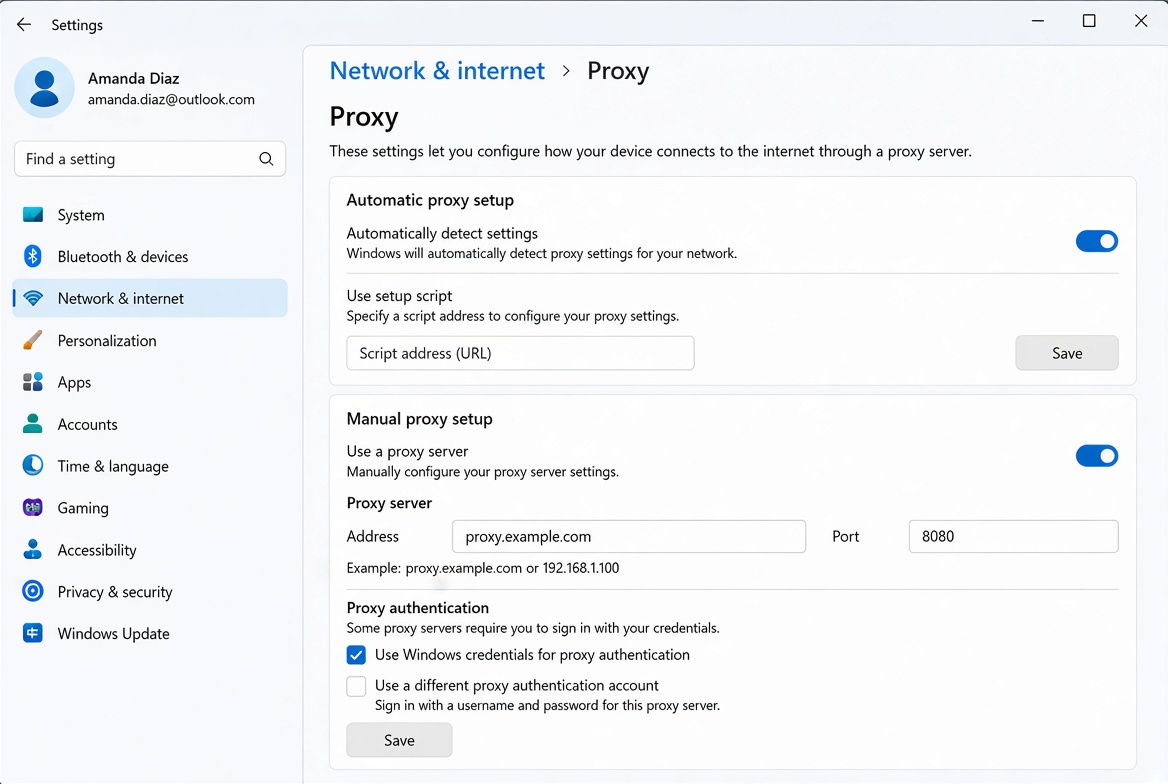
Windows 10 and Windows 11 Proxy Configuration
To configure proxy settings on Windows 10 and Windows 11, follow these steps:
Step 1. Open Settings by pressing Windows + I. Step 2. Click Network & Internet. Step 3. Click Proxy. Step 4. Under Automatic proxy setup, turn on Automatically detect settings. Step 5. To use a setup script, turn on Use setup script and enter the script address. Step 6. Under Manual proxy setup, turn on Use a proxy server. Step 7. Enter the proxy server address and port. Step 8. If authentication is required, enter your username and password. Step 9. Click Save.
For enterprise environments, use Group Policy to deploy proxy settings across all devices. Open Group Policy Management Editor. Navigate to Computer Configuration > Administrative Templates > Windows Components > Internet Explorer. Enable Make proxy settings per machine. Configure the proxy settings as needed.
macOS Proxy Configuration
To configure proxy settings on macOS, follow these steps:
Step 1. Open System Settings. Step 2. Click Network. Step 3. Select your active network connection, such as Wi-Fi or Ethernet. Step 4. Click Details. Step 5. Click Proxies. Step 6. Select the proxy protocols you want to configure, such as HTTP, HTTPS, or SOCKS. Step 7. Enter the proxy server address and port. Step 8. If authentication is required, enter your username and password. Step 9. Click OK.

For enterprise deployment on macOS, use configuration profiles. Create a .mobileconfig file with the proxy settings. Deploy it using MDM software like Jamf or Mosyle.
Linux Proxy Configuration
To configure proxy settings on Linux, you can use environment variables or system-wide settings.
For system-wide proxy settings on Ubuntu/Debian, edit the /etc/environment file:
HTTP_PROXY=http://proxy.example.com:8080

HTTPS_PROXY=http://proxy.example.com:8080

NO_PROXY=localhost,127.0.0.1,localaddress,.localdomain.com
For Red Hat/CentOS, edit the /etc/profile.d/proxy.sh file:
export http_proxy=http://proxy.example.com:8080

export https_proxy=http://proxy.example.com:8080

export no_proxy=localhost,127.0.0.1,localaddress,.localdomain.com
For GNOME desktop, go to Settings > Network > Proxy. Enter the proxy settings. For KDE, go to System Settings > Network > Proxy.
Mobile OS Proxy Configuration
For Android, go to Settings > Wi-Fi. Long press on your connected network. Click Modify network. Click Advanced options. Under Proxy, select Manual. Enter the proxy server address and port.
For iOS, go to Settings > Wi-Fi. Click the information icon next to your connected network. Scroll down to HTTP Proxy. Select Manual. Enter the proxy server address and port. If authentication is required, enter your username and password.
Enterprise-Grade Proxy Deployment Methodologies
Enterprise deployment requires careful planning and execution. Follow these methodologies for successful proxy deployment.
Assessment Phase
Step 1. Identify your requirements: content filtering, security, privacy, or performance. Step 2. Choose the proxy type based on your needs. Step 3. Select the proxy software or service. Step 4. Plan the network architecture. Step 5. Define proxy policies and rules.
Deployment Phase
Step 1. Install the proxy server on dedicated hardware or cloud instance. Step 2. Configure the proxy server with your policies. Step 3. Set up authentication if required. Step 4. Configure logging and monitoring. Step 5. Test the proxy server internally.
Configuration Phase
Step 1. Deploy proxy settings to client devices using Group Policy, MDM, or configuration profiles. Step 2. Deploy PAC files for automatic proxy configuration. Step 3. Configure exceptions for internal resources. Step 4. Test proxy functionality on different devices. Step 5. Monitor proxy performance and logs.
Maintenance Phase
Step 1. Update proxy software regularly. Step 2. Review proxy logs for anomalies. Step 3. Update proxy policies as needed. Step 4. Monitor proxy performance and capacity. Step 5. Backup proxy configurations regularly.
Production-Grade Proxy Auto-Configuration (PAC) Template
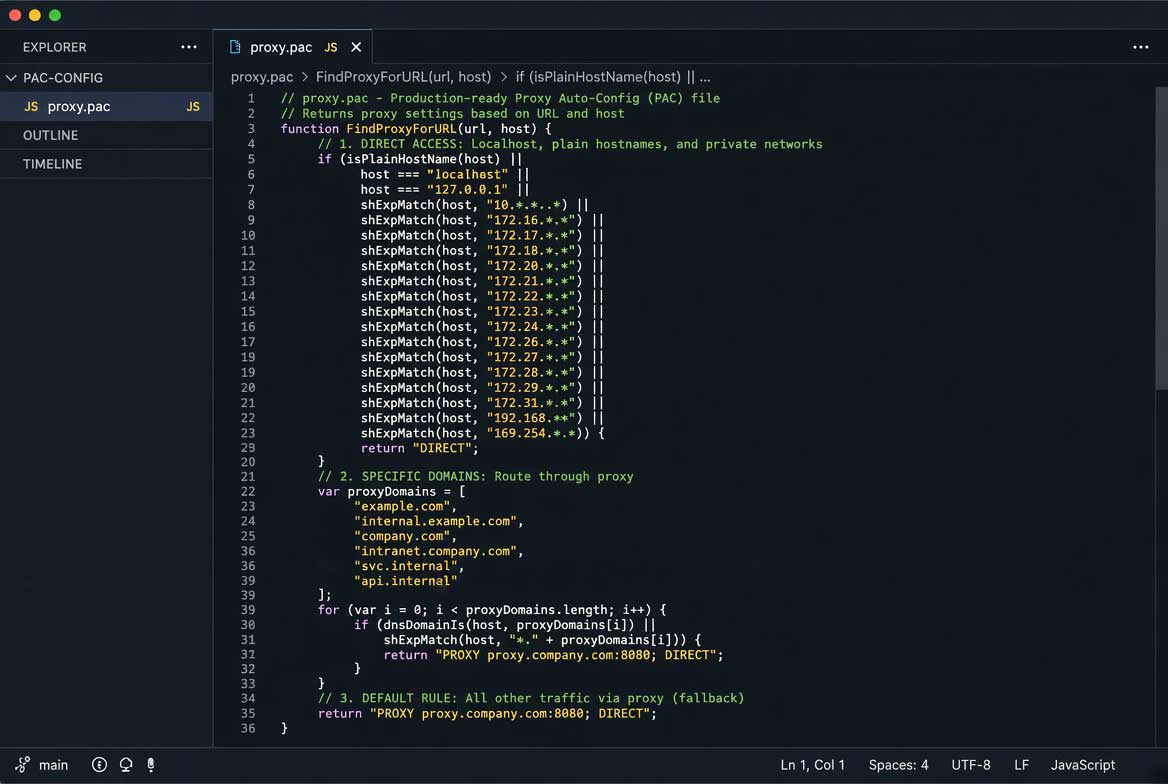
PAC files provide automatic proxy configuration for client devices. Here is a production-grade PAC template:
javascript
function FindProxyForURL(url, host) {

    // Direct access for internal resources

    if (shExpMatch(host, "*.internal.company.com") ||

        shExpMatch(host, "*.local") ||

        isPlainHostName(host) ||

        dnsDomainIs(host, ".company.com")) {

        return "DIRECT";

    }
    // Use proxy for specific domains

    if (shExpMatch(host, "*.example.com") ||

        shExpMatch(host, "*.sensitive.com")) {

        return "PROXY proxy1.company.com:8080";

    }
    // Use different proxy for specific countries

    if (dnsDomainIs(host, ".uk") ||

        dnsDomainIs(host, ".ca") ||

        dnsDomainIs(host, ".au")) {

        return "PROXY proxy2.company.com:8080";

    }
    // Default proxy

    return "PROXY proxy.company.com:8080; DIRECT";

}
This PAC template routes internal traffic directly, uses specific proxies for sensitive domains, and provides a default proxy for all other traffic. It includes failover to direct connection if the proxy is unavailable.
Operational Troubleshooting & Security Validation
Common proxy issues and their solutions:
Issue: Proxy Connection Failed
Solution: Check the proxy server address and port. Verify the proxy server is running. Check firewall rules. Test connectivity using telnet: telnet proxy.example.com 8080.
Issue: Authentication Failed
Solution: Check username and password. Verify the authentication method. Test credentials using a different client. Check if the account is locked.
Issue: Slow Proxy Performance
Solution: Check proxy server load. Monitor bandwidth usage. Check for network congestion. Consider scaling up proxy resources. Use caching to improve performance.
Issue: DNS Resolution Failure
Solution: Check DNS settings on the proxy server. Verify DNS resolution for target domains. Use a different DNS provider. Configure DNS forwarding.
Issue: SSL Certificate Errors
Solution: Check SSL certificate validity. Verify the certificate chain. Install the correct certificate on the proxy. Use SSL decryption with proper certificate management.
Security Validation
Step 1. Test proxy configuration for DNS leaks. Step 2. Verify IP address masking using IP leak test websites. Step 3. Check for WebRTC leaks in browsers. Step 4. Test proxy authentication security. Step 5. Review proxy logs for unauthorized access attempts. Step 6. Perform penetration testing on the proxy server. Step 7. Validate SSL/TLS configuration. Step 8. Check for proxy bypass vulnerabilities.
Technical Comparison Matrix
| Feature | HTTP Proxy | SOCKS5 Proxy | Transparent Proxy | Reverse Proxy |
|---|---|---|---|---|
| Traffic Type | HTTP only | All traffic | All traffic | HTTP/HTTPS |
| Encryption | Optional | No | No | Yes with SSL |
| Authentication | Yes | Yes | No | Yes |
| Caching | Yes | No | Yes | Yes |
| Anonymity | Low | High | Low | Medium |
| Use Case | Web browsing | Any traffic | Content filtering | Load balancing |
| Performance | Medium | High | High | High |
| Complexity | Low | Medium | Low | High |
Conclusion of Proxy Server
How to set up proxy server configurations enterprise and OS guide provides everything you need to configure proxies across all major platforms. By using the blueprints and templates in this guide, you can deploy enterprise-grade proxy solutions. Use trusted vendors for your proxy tools and services.
Visit Vladfox.com to get Non VBV BINs or clonecards.store to get clone cards, legit dumps with pin and carding materials, also visit worlddumps.com to get money swift money transfer service which includes bank transfer, paypal, cashapp, venmo, zelle and western union transfers.
Also read: Notorious Ways Hackers Steal Your Identity on Social Media
FAQ Section on Proxy Server
Q: What is architectural taxonomy for proxy servers?
A: Architectural taxonomy classifies proxy servers by type: forward proxy, reverse proxy, transparent proxy, anonymous proxy, high anonymity proxy, SOCKS proxy, HTTP proxy, and SSL proxy. Each type serves a different purpose.
Q: How to configure proxy settings on Windows 10?
A: Open Settings > Network & Internet > Proxy. Enable automatic detection or enter manual proxy settings including address, port, username and password.
Q: How to configure proxy settings on macOS?
A: Open System Settings > Network > select your connection > Details > Proxies. Enter proxy settings for each protocol. Use MDM profiles for enterprise deployment.
Q: How to configure proxy settings on Linux?
A: Set environment variables in /etc/environment or /etc/profile.d/proxy.sh. Configure through desktop settings in GNOME or KDE.
Q: How to configure proxy settings on mobile devices?
A: For Android, go to Wi-Fi settings, modify network, and set proxy to manual. For iOS, go to Wi-Fi settings, select network, and configure HTTP proxy.
Q: What is enterprise-grade proxy deployment methodology?
A: It includes assessment phase to identify requirements, deployment phase to install and configure the proxy, configuration phase to deploy settings to clients, and maintenance phase for ongoing management.
Q: What is a production-grade PAC template?
A: A PAC file is a JavaScript function that defines how browsers choose proxy servers. The template includes rules for internal resources, specific domains, and default proxy with failover.
Q: How to troubleshoot common proxy issues?
A: Check proxy server connectivity, verify authentication credentials, monitor performance, check DNS resolution, and validate SSL certificates.
Q: How to validate proxy security?
A: Test for DNS leaks, verify IP masking, check for WebRTC leaks, test authentication, review logs, perform penetration testing, and validate SSL configuration.
Q: What is the technical comparison matrix for proxy types?
A: The matrix compares HTTP, SOCKS5, transparent, and reverse proxies across features like traffic type, encryption, authentication, caching, anonymity, use case, performance, and complexity.
